Getting started
Top 7 TurboCoder Tips
|
1. Simple searching | |
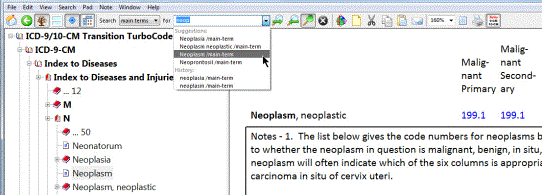
Example: Type "neop" into the Search box on the toolbar (search default is main terms). The pull down will list main terms starting with neop. If searching for "neoplasm", click on that term in the list that's generated to take you to the Neoplasm table in ICD-9-CM. Scroll down to see the Smart Table Headings retained at the top of the screen for easy identification of the table information. More powerful search info in Help/Contents.
| |
|
2. Adjust the font size | |
Set
the type size for comfortable viewing by clicking once in the active Windows
pane, and holding down the Control Key and scrolling the mouse wheel to adjust
the font size.
| |
|
3. Customize your view | |
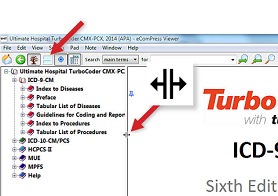
Customize the TurboCoder window size to suit your needs by simply dragging the view boundary lines. View one, two or four coding resources at the same time by choosing a MultiView content screen. Simply click the window icon on the Toolbar (fourth from left). Note the color coding of red for ICD-9-CM, green for ICD-10-CM and various shades of blue for CPT® Coding and HCPCS procedures.
| |
|
4. Quickly access your most-used references | |
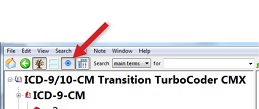
Your TurboCoder has been configured with default books Pinned in the MultiView content screen. Click on the blue pin icon on the toolbar (fifth from left) to remove the default pinning, and click on the pin icon again to customize. You can always restore the default pinning by going to the Window/Reset Pinning tab.
| |
|
5. Easy Copy and Paste | |
Copy and Paste or Drag and Drop without fuss! Simply select text with your mouse, hold the left mouse button, and drag and drop the selected text in Word, email, etc., with all formatting retained.
| |
|
6. Navigation tree | |
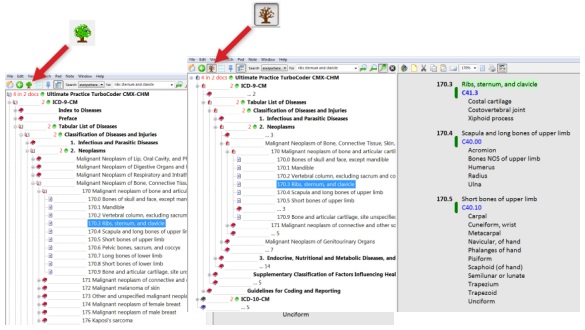
Click the Tree Pruning button on the Toolbar (third from left) to manage the navigation tree by truncating or expanding the drill down menu. The pruned tree indicates truncation so that you can clearly see main term and various levels of indentation. The Ellipsis (...) with a number indicates previous levels rolled-up - click to expand. The Tree Pruning can be further customized by selecting Pruning options under View on the toolbar. The Green dots with a number indicate search results - clicking on the green dot will take you to the first hit for your Search under that heading.
| |
|
7. Drag-on
Icon | |
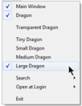
The Drag-on icon floats on top of your desktop to give you instant TurboCoder access and Search. Re-position the Drag-on by left clicking on it and dragging to where you want it. The Drag-on remains on screen after you close the main window by default, but it can be resized, closed or the default changed by a right clicking and selecting your choice. See menu lists below. Activate fast searches by clicking and dragging words directly onto the Drag-on. The TurboCoder will open, the Words will automatically appear in the Search box with the search results displayed.
| |



CPT is a registered trademark of the American Medical Association.